Quick Summary
You just downloaded Google's latest Gemma-4 26B model. The GGUF file is a manageable 13.2GB thanks to Quantization-Aware Training (QAT). Your everyday laptop has 8GB of VRAM. On paper, running this locally should be impossible. Yet, you fire up llama.cpp, load the model, and watch the token counter tick upward at a highly respectable 20 tokens per second (t/s). Life is good.
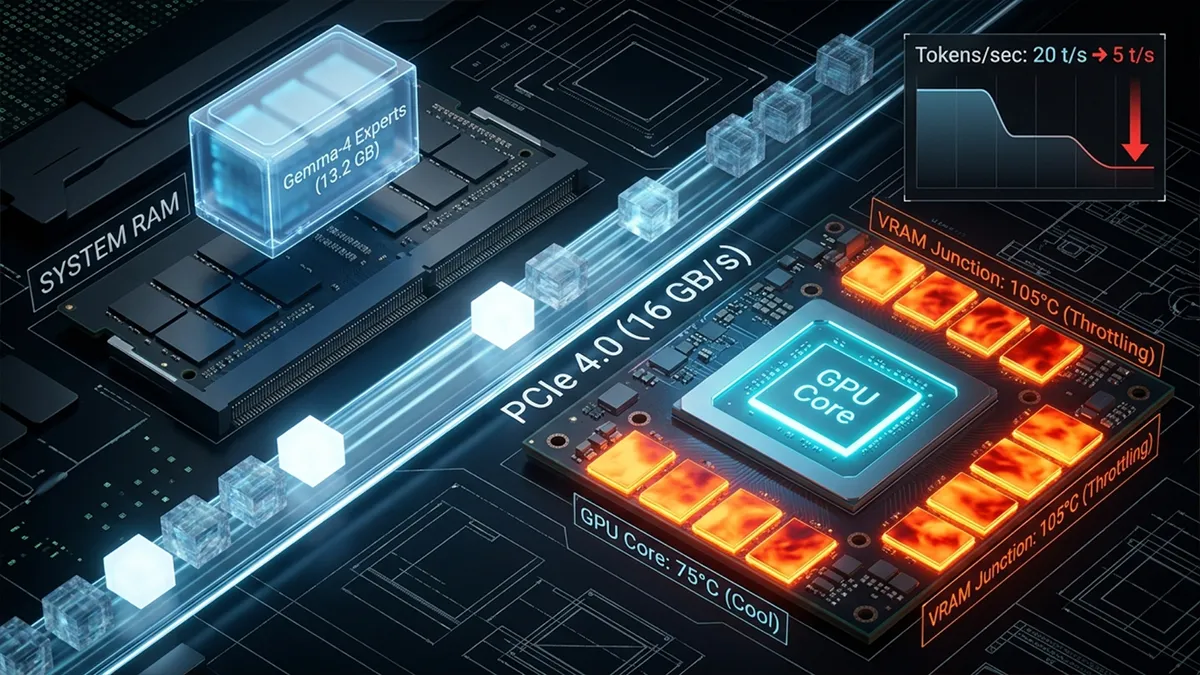
Then, fifteen minutes later, your local AI workspace falls apart. The fans scream like a jet engine, your laptop's chassis becomes painful to touch, and your generation speed suddenly drops from 20 t/s down to a crawl of 5 t/s. You check Task Manager and see the GPU core sitting at a comfortable 75°C. What is actually going on under the hood?
The VRAM Thermal Saturation Reality
Unlike gaming workloads, which are highly bursty, local AI inference is a sustained, unrelenting stress test for your silicon. When you use the advanced `-cmoe` memory-split trick in `llama.cpp` to run a 26B model, you offload the heavy Mixture of Experts weights to system RAM, keeping only the attention mechanism and the KV Cache locked in the GPU's VRAM. This prevents Out-of-Memory (OOM) crashes, but it creates a massive thermal bottleneck.
"Your GPU core might stay cool at 75°C because part of the model is offloaded, but your VRAM memory bus is working at 100% capacity. The high-density GDDR6 memory junction quietly spikes to 105°C, forcing the internal GPU firmware to trigger emergency downclocking to protect itself from hardware degradation."
This is where the deceptive nature of standard OS monitors becomes dangerous. Your system only tracks the GPU core temperature to control the fans. Meanwhile, your video memory is quietly cooking in a localized hotspot. To understand the physics behind this shared cooling bottleneck, read our detailed analysis on Why VRAM Overheats in Modern Laptops.

Know your VRAM Thermal Limits
Download the 2026 Reference Chart for RTX 30/40/50 Series.
Why Traditional Undervolting Won't Save Your VRAM
Many developers attempt to solve local AI overheating by configuring custom voltage curves. While undervolting is a highly effective way to cool the GPU core, it is nearly powerless against memory thermal saturation during AI inference. The video memory chips run on their own power delivery phases. Starving the GPU core of power doesn't reduce the constant electrical load on the VRAM bus when swapping experts or processing massive 60k token contexts. For a detailed performance analysis, see Pulse Throttling vs. Undervolting: A Technical Comparison.
The Solution: Software-Defined Duty Cycles
Instead of trying to modify locked laptop firmware, VRAM Shield manages the thermal load directly at the software layer. By utilizing its proprietary Pulse Throttling Technology, VRAM Shield introduces millisecond-level pauses into the GPU compute queue. This creates a highly efficient "breathing space" for the physical hardware, allowing the shared copper heat pipes to dissipate accumulated thermal energy during the micro-pauses. To see how this manages system stability, check out our deep-dive into Pulse Throttling vs. Smart Throttling.
The result is a stable, unthrottled 20 tokens-per-second throughput even during multi-hour local reasoning runs. VRAM Shield (v2.2.2) is fully portable, requires no complex installation, and is verified clean of any malicious false-positives by industry leaders including NVIDIA-associated frameworks.
Ready to secure your local AI development workstation? Explore our PRO License to unlock advanced real-time telemetry and Smart Throttling.